woensdag 13 maart 2013

ADF BC: performance-issues when using View Accessors and List of Values

One of the features of ADF BC view objects is the possibility to define a model-based list of values for an attribute. This comes with a lot of functionality and can be defined in an easy way in the view object. However it appears that the default behavior of the JDeveloper and ADF has a negative effect on the performance of your application.

Suppose we have two view objects in out model-project:
  • EmployeesView
  • DepartmentsView
The EmployeesView has an attribute DepartmentId for which we want to define a choice-list with all deparments. To create such a list we must perform the following steps:

First we need to define a view accessor to the DepartmentsView.
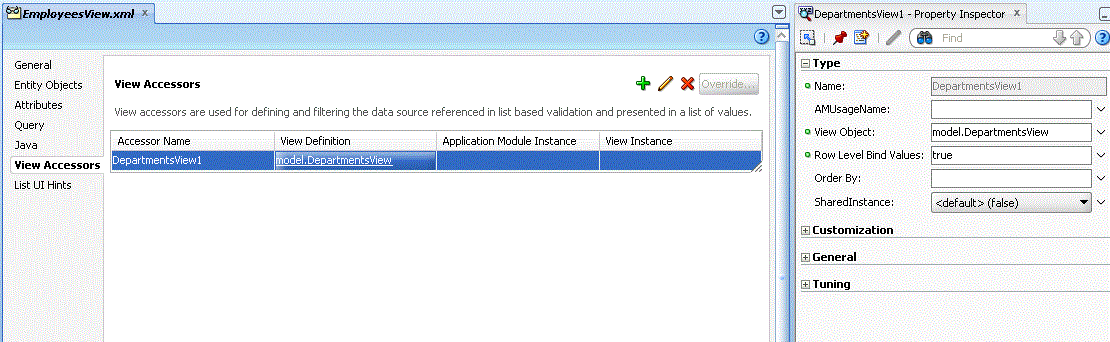
fig 1 - View accessor

Second we need to define a List of values for the field DepartmentId.

fig 2 - List of Values


To show the effect of this default LOV definition I've added some logging information in the executeQueryForCollection method of the view objects base-class.

Now suppose we create a simple employees.jspx view and we drag-and-drop the EmployeesView as a table from the datacontrol-pallet to the page. The page will look something like this

fig 3 - employees.jspx

The log-info that is generated by this simple screen is as follows:

fig 4 - logging

As you can see, the executeQueryForCollection is called once for the EmployeesView, as expected, but many times for the DepartmentsView. The query to determine the choice-list values for the field DepartmentId is executed for every row in the EmployeesView. This is unnecessary and can have a negative effect on the performance of your application.

The behavior is caused by a property of the view accessor. If we take a closer look to the Property Inspector in fig. 1, we see a property 'Row Level Bind Values' with a value 'true'. The purpose of this property is to indicate that there are bind variables defined in the lookup view object that can have a different value for each row in the base view object. In out situation that is not the case. A valid example would be a list of values for the attribute ManagerId, where the list of managers is limited to the department of the employee.

Now lets turn the value of the 'Row Level Bind Values' to 'false' and run the screen again. This generates the following log-information:

fig 5 - logging with Row Level Bind Values = false
Now the executeQueryForCollection is called only once for the lookup DepartmentView. Much better!

Setting the value of the property to empty will have the same effect, as long as there are now bind variables in the lookup view object at all. If there are bind variables, an empty value will have the same effect as  the value 'true'. This seems logical, but if you assign literal values to the bind variables instead of 'row level bindings', it is still undesired.

Conclusion
The default behavior of JDeveloper when creating a view accessor is that it will set the property 'Row Level Bind Values' to 'true'. As we have seen this can have a (very) negative effect on the number of queries executed, and the performance of your application. Leaving the property blank works in many cases, but not always. My advise is to set this value explicitly to 'false' if you have no bind variables that really depend on some attribute values in the row.
The problem is that property is not visible in the create/edit window for a view accessor. Furthermore JDeveloper has it's own ideas of what the value for this property should be. Sometimes when you change something in the view object, the value for the property is changed automatically. You should be aware of this.

To deal with this issue I've created a small extension for JDeveloper that defines an auditrule that checks for the correct settings of the 'Row Level Bind Values' property. It also provides an automatically fix for the settings. I will soon make this extension available.

Remarks: I'm working with JDeveloper 11.1.1.6. I don't know the behavior of JDeveloper 11.1.2.* for this issue.

donderdag 19 april 2012

ADF 11g: Remove the LOV button from the keyboard tab-sequence: Part 2

In a previous post I described a way to remove the LOV button from the keyboard tab-sequence. This solution was based on a combination of a focus-clientListener and some Javascript. As soon as an LOV item gets focus, the Javascript searches the related LOV button and turns the tabIndex of the button to -1. This way, the button will not be in the tab-sequence anymore.
One comment on this solution was that it will not work for LOV items that are displayed as part of an <af:query> component. This is caused by the fact that an <af:query> component renders its items on the fly, so it is not possible to add a clientListener to an item. However, there is another solution for this problem.

Since the previous post, I've been working on functionality  to 100% keyboard enable our ADF application. This functionality is based on a Javascript library called jQuery, This library turns out to be a very powerful tool in combination with the ADF client side.In this post I will describe a way to remove the LOV button from the keyboard tab-sequence, using jQuery. The solution will cover all LOV items, including the ones in e.g. an <af:query>.

In general, what the solution does, is find all LOV buttons in the page (HTML-document), and turn their tabIndex into -1.For this we first need a Javascript to find and change all LOV buttons. And this is where jQuery comes into place:

Javascript
var lovIcons = $('a[id$="lovIconId"]');

This statements finds all HTML-elements of type <a> with an id that ends with 'lovIconId'. This results in a list of all the LOV buttons.The $ sign in the statement is a reference to the functions in the jQuery library.

The next step is to turn the tabIndex for all the items into -1:

Javascript
$(lovIcons).attr('tabIndex', -1);

In this post I will not go into the details of jQuery, but as you can see a few simple statements can do the job.

To make use of jQuery, download the library from this location: http://code.jquery.com/jquery-1.7.js. Make sure the library is available in your project, and include a reference to the library in your page:

    <af:document id="d1">
      <f:facet name="metaContainer">
        <af:group>
          <af:resource type="javascript" source="/jsLibs/jquery-1.7.js"/>
        </af:group>
      </f:facet>
   .....


Now we need a way to trigger this Javascript. ADF pages are dynamic documents that can show or hide LOV items during different requests. This means that it is not enough to run the script during document-load. The easiest way is to run the script during every request. Perhaps there are more fine-grained ways, but for this post I will keep it simple. To trigger the script we make use of a PhaseListener. This PhaseListener adds the script to every response:

PhaseListener
package view.beans;

import javax.faces.context.FacesContext;
import javax.faces.event.PhaseEvent;
import javax.faces.event.PhaseId;
import javax.faces.event.PhaseListener;

import oracle.adf.share.logging.ADFLogger;

import org.apache.myfaces.trinidad.render.ExtendedRenderKitService;
import org.apache.myfaces.trinidad.util.Service;


public class DemoPhaseListener implements PhaseListener {
    private static final ADFLogger sLog = ADFLogger.createADFLogger(DemoPhaseListener.class);
    private static final long serialVersionUID = 1L;

    /**
     * placeholder method
     */
    @Override
    public void afterPhase(PhaseEvent phaseEvent) {
    }

    /**
     */
    @Override
    public void beforePhase(PhaseEvent phaseEvent) {
        if (phaseEvent.getPhaseId() == PhaseId.RENDER_RESPONSE) {

            FacesContext fctx = FacesContext.getCurrentInstance();
            ExtendedRenderKitService erks = Service.getRenderKitService(fctx, ExtendedRenderKitService.class);
            StringBuffer script = new StringBuffer();

            // Append the jQuery script to find all lov-icons and set their tabIndex to -1

            script.append("var lovIcons = $('a[id$=\"lovIconId\"]'); $(lovIcons).attr('tabIndex', -1);");
            erks.addScript(fctx, script.toString());
        }

    }

    @Override
    public PhaseId getPhaseId() {
        return PhaseId.RENDER_RESPONSE;
    }

}


The last step is to define the PhaseListener in the faces-config.xml file:

<?xml version="1.0" encoding="UTF-8"?>
<faces-config version="1.2" xmlns="http://java.sun.com/xml/ns/javaee">
  <lifecycle>
    <phase-listener>view.beans.DemoPhaseListener</phase-listener>
  </lifecycle>
  <application>
    <default-render-kit-id>oracle.adf.rich</default-render-kit-id>
  </application>
</faces-config>


So now, if you run your application, all LOV-buttons are skipped! Soon I will write some more about he possibilities of jQuery in combination with ADF clientside scripts.

woensdag 21 maart 2012

ADF 11g: Remove the LOV button from the keyboard tab-sequence

The default behavior in ADF Faces when using the tab-key in a List of Values item is that the LOV icon behind the item will get the focus. For people who do a lot of data entry  this is not the preferred behavior, because they usually know the codes they have to enter. In combination with a function key defined to call the LOV dialog, there is no need to include the LOV icon in the tab-sequence. 

Looking for a way to solve this problem, I found several blogposts with a solution. Most of them are based on the usage of a clientListener of type 'keydown' on the LOV item. The clientListener calls a JavaScript function that checks the key pressed, and places the focus on the next input field when the tab-key is pressed. The challenge in these solutions is to determine what the next focus field should be. Finding the next item based on hardcoded id's isn't an elegant solution.


If we could influence the way the HTML was written by ADF Faces, the solution would be easy. The only thing we really need, is to set the HTML tabIndex attribute of the LOV icon to -1. This tells the browser to skip the icon from the tab sequence. However the af:inputListOfValues item does not support this feature declaratively. 

In the following I will explain how the tabIndex of the LOV icon can be set to -1. What we need is a clientListener and some JavaScript.


Javascript:
 function setLovTabIndex(event) {  
   var component = event.getSource();  
   var lovButtonId = component.getClientId() + '::lovIconId';  
   
   // We have to find the button using the document because finding it through Adf.Page.findComponent does not  
   // work. The icon is not a separate ADF component.  
   var lovButton = document.getElementById(lovButtonId);  
   
   // This is the trick: set tabindex to -1  
   lovButton.tabIndex = - 1;  
   
   // Remove the eventlistener to prevent action from being performed again. Not really a must, but cleaner.  
   // However this does not work in conjunction with the autosuggest feature on the lov-item.  
   // In that case the listener is not removed.  
   component.removeEventListener("focus", setLovTabIndex, false);  
   
   //event is handled on the client. Server does not need  
   //to be notified  
   event.cancel()  
 }  
   

This JavaScript should be included in a JavaScript library that is part of your application.

The next step is to add an  af:clientListener to the af:inputListOfValues item:
     <af:inputListOfValues id="employeesManagerId" ...>  
      <f:validator binding="#{bindings.EmployeesManagerId.validator}"/>  
      <af:convertNumber groupingUsed="false" pattern="#{bindings.EmployeesManagerId.format}"/>  
      <af:clientListener method="setLovTabIndex" type="focus"/>  
     </af:inputListOfValues>  
   

As you can see, the listener is fired when the LOV item gets the focus. The JavaScript will lookup the related LOV icon, and will set the tabIndex of the icon to -1. After that, the clientListener is removed. The advantage of this approach is that there is no need to have any knowledge about the 'next focus field'. Furthermore the code is only fired once when the LOV item gets focus.